
By John Gargiulo, Supervising Librarian of Creative Technology
Finding websites for businesses, restaurants, and community organizations is normally an easy task with the help of search engines. But using a smartphone or other mobile device to find information on these websites can feel overwhelming when each site might have a different look, layout, or feel.
Fortunately, there are common patterns and clues you can use while browsing websites that can help you find the information you’re looking for faster.
In this post, we will overview common icons and locations of information within mobile webpages. We will use the library’s website, oppl.org, as an example to demonstrate these patterns.
Home page & menu
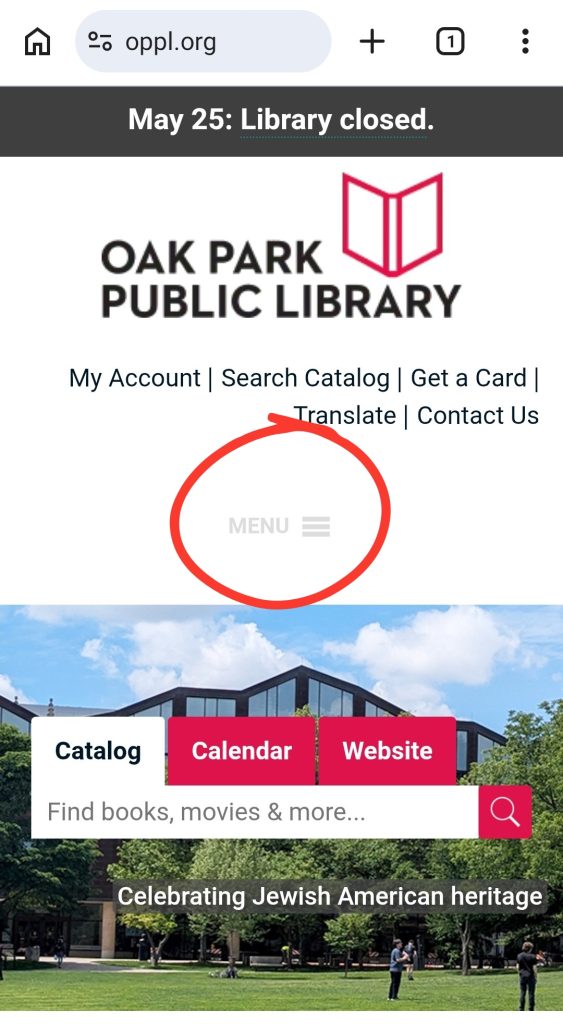
The first page, or home page, of most mobile webpages may feature a logo, image of the organization, or slideshow. Somewhere on this page, there should be a menu button that will show more navigation options when pressed. The menu may be indicated by a three-dash “hamburger” style menu icon, the word “menu,” or both.
On the library home page, both the hamburger-style menu icon and the word menu are present (see screenshot 1 pictured below). On other webpages, if you don’t immediately see a menu, scrolling on the screen may make it appear.
Menu options
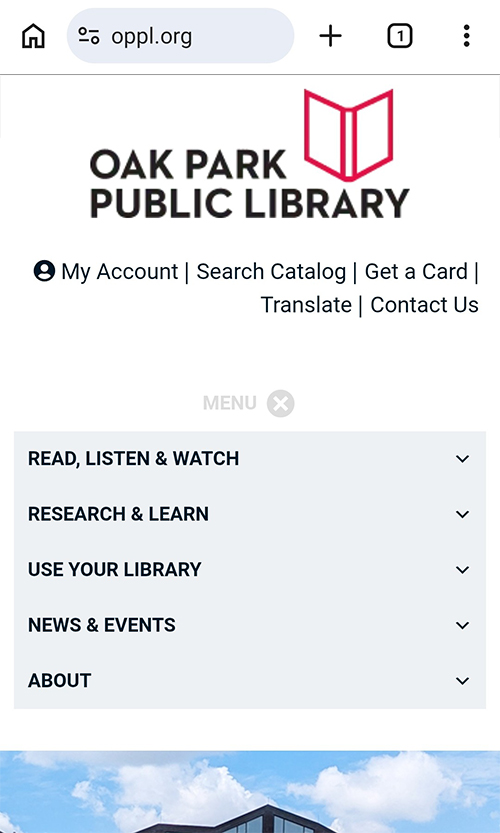
After pressing the menu button, additional options to view other pages should appear. For example, after pressing the menu button on oppl.org, five page options appear for viewing additional pages: Read, Listen & Watch, Research & Learn, Use Your Library, News & Events, and About (see screenshot 2 pictured above). All five menu options feature a downward-pointing arrow icon to indicate that more options are available within these categories.
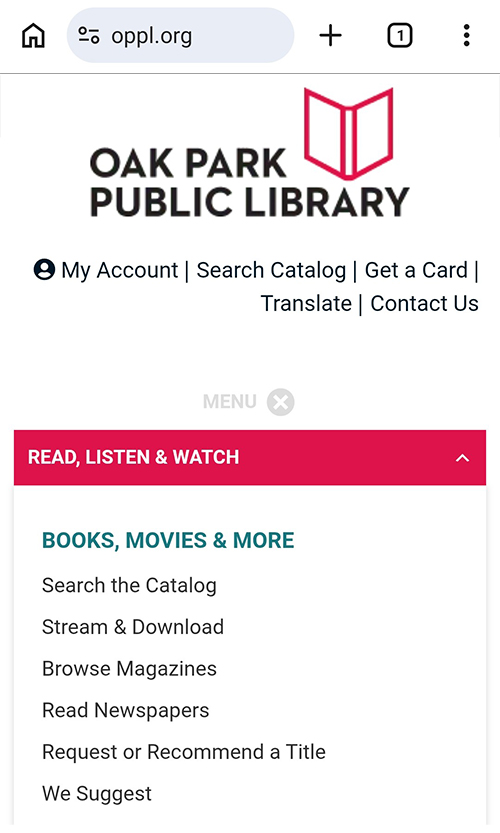
For example, pressing Read, Listen & Watch (or the arrow next to it) displays more specific page options, such as Search the Catalog, Stream & Download, Browse Magazines, and Read Newspapers (see screenshot 3 pictured above).
Navigating back to the home page
If you navigate to a page that doesn’t have the information you are looking for, you may want to navigate back to the home page or menu. For this scenario, a few options may be helpful:
- Using your web browser’s back button (often a left-facing arrow icon) will take you back to the previous page.
- On some mobile webpages, the menu icon will be available on every page of the site, likely near the top of the page.
- In some cases, pressing the organization’s logo at the top of the page will take you back to the home page.
Hours of operation & address information
Hours and address information for businesses and organizations are commonly located at the bottom of the home page. For example, when you scroll to the bottom of oppl.org, you will see a Visit Us section (see screenshot 4 pictured below). Pressing the plus icon next to each library branch location will expand the section to show more information about the address, contact information, and hours for that location (see screenshot 5 pictured below).
On other webpages, a plus icon may offer a similar function of expanding a topic to display more information, or it may navigate to another page with more information.


Contact information
Contact information (see screenshot 6 pictured above) may appear in multiple places on mobile webpages. On oppl.org, you can find contact information and related forms in the following places:
- At the top of the page, there is a Contact Us link.
- Within the menu, towards the bottom of the About section, there is another link to the same Contact Us page.
- At the bottom of the home page, there is also a link to the same Contact Us page.
On other webpages, contact information may be included in all or just some of these places. When in doubt, the menu or bottom of the home page may include some form of contact information.
Additional resources
Looking for additional information on the meanings of common icons across webpages and apps? Check out this Tech Tips post on common icons.
Have a tech question?

About John
As the library’s Supervising Librarian of Creative Technology, John enjoys working with patrons to discover how we can demystify technology and shape it to help us with our different needs and aspirations. He is also a musician and loves making noise.