

By John Gargiulo, Supervising Librarian of Creative Technology
Do you have a Gmail account? If you have a Gmail account, Google provides you with access to additional Google apps like Docs, Drive, and Slides.
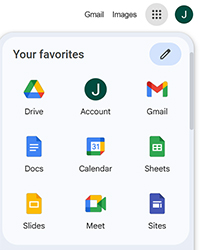
In this post, we’ll cover a few basics of using Google Docs to create and edit text documents. You can access Google Docs by:
- Visiting docs.google.com or
- Clicking on the tile menu in the right corner of the screen while logged into your Gmail account
‘A more streamlined feel’
Google Docs is a text editor program with a more streamlined feel. Many of the common formatting options you would see in similar apps, such as Microsoft Word, are available in the ribbon menu at the top of the page.

Additional options are available by clicking on the File, Edit, View, Insert, Format, and Tools dropdown menus.

Continuous saving, easy sharing
Want to work on a document on a public computer, or work on a document on both your smartphone and computer? Because Docs is a cloud-based application, it continuously saves your work in real-time. As long as your internet connection is maintained, your work will be saved. This feature lets you easily work on documents across multiple devices and in different locations.
Google Docs also makes it easy to share documents with colleagues, family members, and friends. Customizing the share options allows you to choose if other viewers can comment on your document, make changes, or see it in a view-only mode without editing permissions.

When selecting the sharing settings, consider how you want others to view your document. Answering these questions can help you pick the ideal share settings for your document:
- Is it a private document that you want only them to access?
- If it does not contain private or sensitive information, do you want them to be able to share it with others?
- Is it a draft document that you want others to be able to edit directly?
- Or is it a finalized document you do not want others to change?
Downloading files from Google Docs

You can download your document from Google Docs in a variety of formats. After clicking on the File menu, hover over Download. Then, click on the file type you want to download your document as.
This tool may be useful when you need to upload a PDF to an online application.
Finding documents in Google Drive
Documents that you create while using Google Docs are stored in Google Drive, a cloud-based file storage application. Drive also allows you to store other file types. Google Drive typically provides users with 15 GB of storage.
If you run out of space, you can try deleting old files you no longer need. Google also offers additional storage space for a small fee, which may be helpful if you need to store a lot of large files, such as photos, audio, and videos.
More resources for learning Google Docs
- Have an Oak Park library account? Watch this LinkedIn Learning tutorial for more in-depth learning: LinkedIn Learning: Google Docs Essential Training
- And from Google, here’s help: How to use Google Docs
Have a tech question?

About John
As the library’s Supervising Librarian of Creative Technology, John enjoys working with patrons to discover how we can demystify technology and shape it to help us with our different needs and aspirations. He is also a musician and loves making noise.