
By Digital Learning Specialist Amelia
Few things are more frustrating than seeing a “Storage Full” notification. But what does it actually mean?
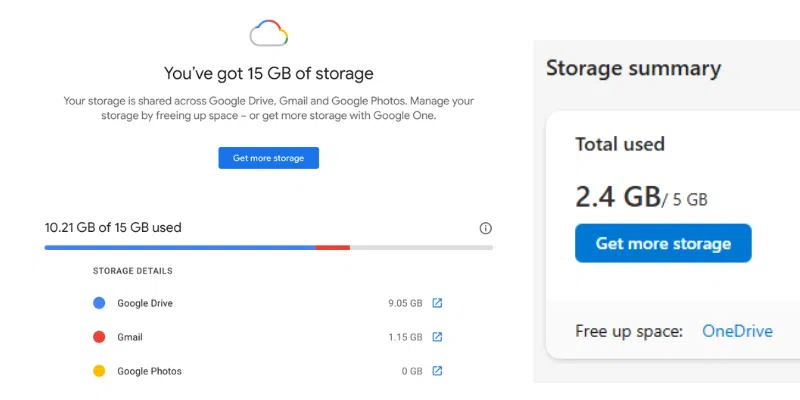
For most people, the biggest reason is that their email account shares storage with other services. For example, Microsoft Outlook accounts include 5 GB of shared storage, while Google Gmail accounts share 15 GB across Gmail, Google Drive, and Google Photos.
Years ago, that seemed like plenty of space. But today, with high-resolution photos, videos, and large email attachments, storage space fills up much faster than most people expect.
If your email is full or getting close, start by checking your account’s storage usage. Both Google and Microsoft provide built-in storage management tools that show what’s using the most space, making it easy to find and remove large files.
5 best ways to free up storage
Note: Most storage changes take 48 hours or more to appear after files are deleted.
1. Delete large emails and attachments
Rather than deleting hundreds of small emails, focus on the messages that take up the most space.
Gmail
Type “has:attachment larger:10M” into the search bar to find emails with attachments larger than 10 MB. You can change 10M to 5M or another size depending on your needs.
Outlook
Sort your inbox by size to quickly identify large messages and lengthy email threads.
Delete any files or messages you no longer need. Keep in mind that your available storage may not update for up to 48 hours.
2. Empty your Trash and Spam
Deleting an email doesn’t always free up space immediately. Messages in your Trash or Spam folders usually continue counting against your storage until they’re permanently removed.
Gmail
Open the Trash and Spam folders and select Empty Trash now and Delete all spam messages now.
Outlook
Open the Deleted Items and Junk Email folders, then permanently delete everything inside.
3. Clean up your cloud storage
If you use Gmail or Outlook, your storage is often shared with other cloud services.
Google Photos
Delete unwanted videos, duplicate images, or blurry photos. You can also switch photos to the Storage Saver format to reduce the space they use.
Google Drive
Remove old documents, large PDF files, and unused app data by selecting Manage apps in your Google Drive settings.
OneDrive
Review large videos, backups, and folders you no longer need.
4. Reduce future clutter
One of the easiest ways to save storage is to stop unwanted emails before they arrive.
- Open promotional emails and click Unsubscribe at the bottom.
- Search for newsletters or marketing emails from a specific company, then delete them in bulk.
A cleaner inbox today means less cleanup later.
5. Upgrade your storage
If you’ve removed everything you no longer need and you’re still running out of space, it may be time to purchase additional storage.
Google One plans start at 100 GB and offer additional shared storage.
Microsoft
Microsoft 365 plans include larger OneDrive storage options along with other productivity features.
Upgrading isn’t always necessary, but it can be the simplest solution if you regularly store large files, photos, or videos.
Have a tech question?

About Amelia
Part concertgoer, part bibliophile, part audiophile, half theatrical skills, half creative journaling. Amelia is part of the digital learning team as a specialist who seeks to bridge the gap between informal and formal digital literacy by emphasizing “we will learn together.”